Yesterday I wrote How to add Page Navigation Menu hack by editing your blogger template. Now today I would like to use a different method to add this Page Navigation Menu to our Blogger Blog. Most Bloggers will prefer this method to add Page navigation Menu , because this method is very easy than editing Blogger Template.
Let us see how to add this Page Navigation Menu Widget :

step 1 : Login to your Blogger account and Navigate to Layout Section . Now click Add Page Element link there.
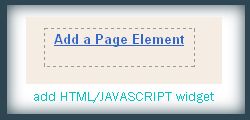
Step 2 : In that Page Element window , choose HTML / JAVASCRIPT .
Step 3 : Now add this Javascript in that window.
‘;
}else{
html += ‘1‘;
}
}else{
html += ‘‘+ (p+1) +’ ‘;
}
}
if(eFlag ==0 && p == thisNum){
downPageHtml = ‘ ‘+ downPageWord +’‘;
eFlag++;
}
}//end if(p>=(thisNum-displayPageNum-1) && p< (thisNum+displayPageNum)){
}//end for(var p =0;p< htmlMap.length;p++){
if(thisNum>1){
if(!isLablePage){
html = ‘‘+ firstPageWord +’ ‘+upPageHtml+’ ‘+html +’ ‘;
}else{
html = ”+labelHtml + firstPageWord +’ ‘+upPageHtml+’ ‘+html +’ ‘;
}
}
html = ‘
Page ‘+thisNum+’ of ‘+(postNum-1)+’: ‘+html;
if(thisNum< (postNum-1)){
html += downPageHtml;
html += ‘ ‘+endPageWord+’‘;
}
if(postNum==1) postNum++;
html += ‘
‘;
if(isPage isFirstPage isLablePage){
var pageArea = document.getElementsByName(“pageArea”);
var blogPager = document.getElementById(“blog-pager”);
if(postNum < = 2){
html =”;
}
for(var p =0;p< pageArea.length;p++){
pageArea[p].innerHTML = html;
}
if(pageArea&&pageArea.length>0){
html =”;
}
if(blogPager){
blogPager.innerHTML = html;
}
}
}
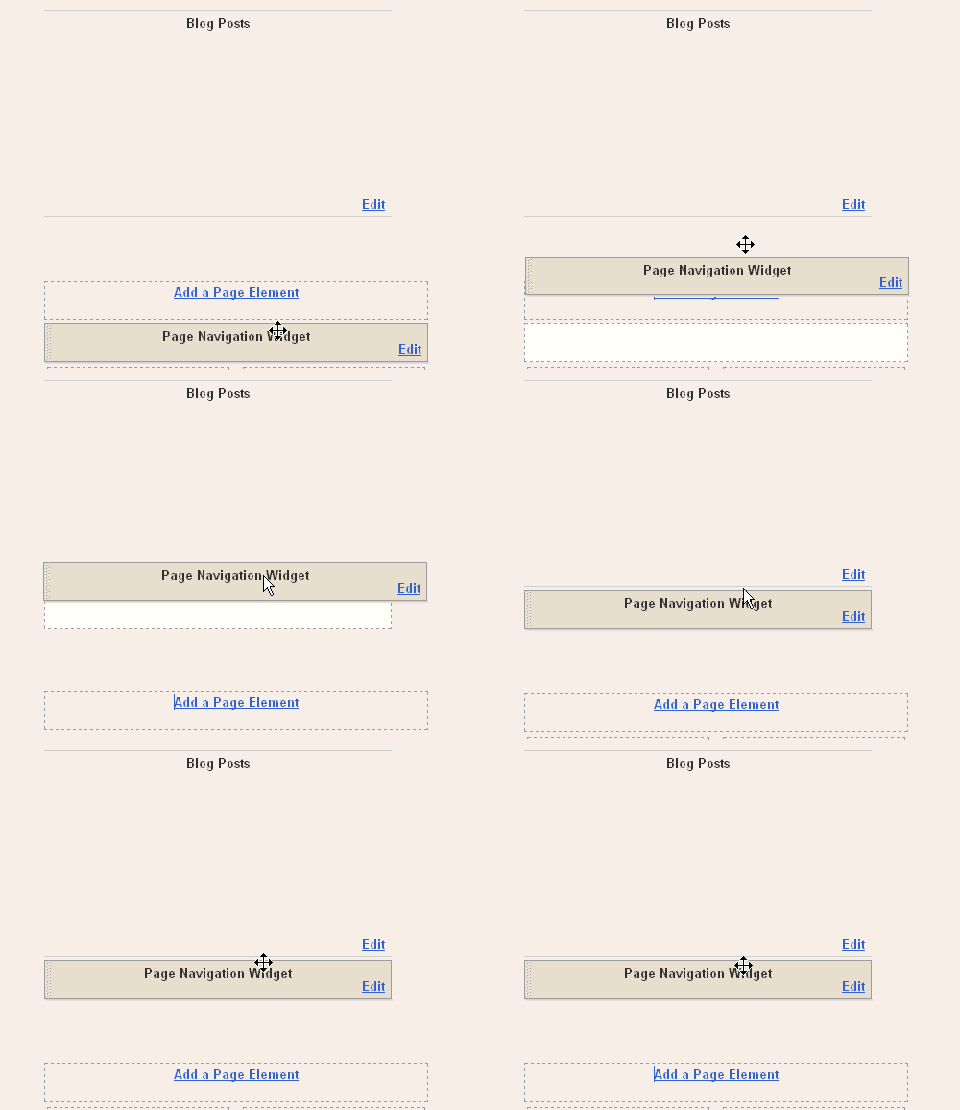
After Adding this Javascript you need to drag and drop the widget below the Blog Posts main widget. See this screen shot
In the code above you can edit the lines in red to your wish .
1 : var pageCount = 5;
The digit in red represents number of posts to be shown in single page. Change the digit to show as many pages you want.
for example :
In my blog I have put that value as 2 . In each page you can see only 2 posts .
2 : var displayPageNum = 3;
here the digit in red represents number of pages to be listed.
For example :
In my blog I have chosen 3 , then 3 pages will be shown.
Now save your template .
That’s it now we have added Page Navigation menu widget to our blog successfully 
 .
.
I hope you guys will feel this method is easier than the last one.
About the author /
Mohamed Rias
Popular


Editor’s Pick
-
December 15, 2010 35+ Inspiring Nightscape photography and Tips
Nightscape Photography is one of the eluding styles of photography in lines of selection of photography-style by a photographer. It is sometime possible to shoot Landscape panorama, sea views, and bridges at night in such a manner as if, it has been taken at day time. A cityscape at night with lights blazing away like…
-
November 22, 2010 85+ BreathTaking Tilt-Shift Photography and Resources
Tilt-Shift photography is the technique of using selective focus. This is used to reduce the magnitude of large size photos to make it into miniature models. One moves the lens adjacent to the plane of the image in the shift phase while moving the lens through an angle to that of the image plane is…
-
February 19, 2010 200+ Ultimate Collection of Photoshop Plugins
Photoshop is a powerful image editing software which is very useful for web designers and photographers to create desired effects in the images. But sometimes it’s difficult to perform certain tasks manually in photoshop. Once there was a belief that only designers who have mastered photoshop can create special effects on photographs or images. But…
-
April 23, 2023 Mastering the Art of Timelapse Photography: Tips and Techniques
Timelapse photography is a technique that involves capturing a series of photos over a period of time and then combining them into a video sequence to create the illusion of time passing quickly. Mastering this art can add a unique dimension to your photography skills. The importance of mastering timelapse photography lies in the fact…
-
May 8, 2009 30+ smashing tutorials for creating Texture and Background Effects in Photoshop
We all know that attractive backgrounds are very much needed for any graphics, banners or ads these days. An interesting artwork can make the abstract art , vector or texture pattern more appealing . Getting the correct theme, whether it’s an abstract art, vector, or texture pattern, somehow makes the entire artwork looks more interesting….